
Follow-ups and reminders
Confirmation, up to three reminders, aftercare and a feedback request after the visit, and a check-in weeks later, written in your own words, by email, in Messages, or both.
-
1
Turn follow-ups on
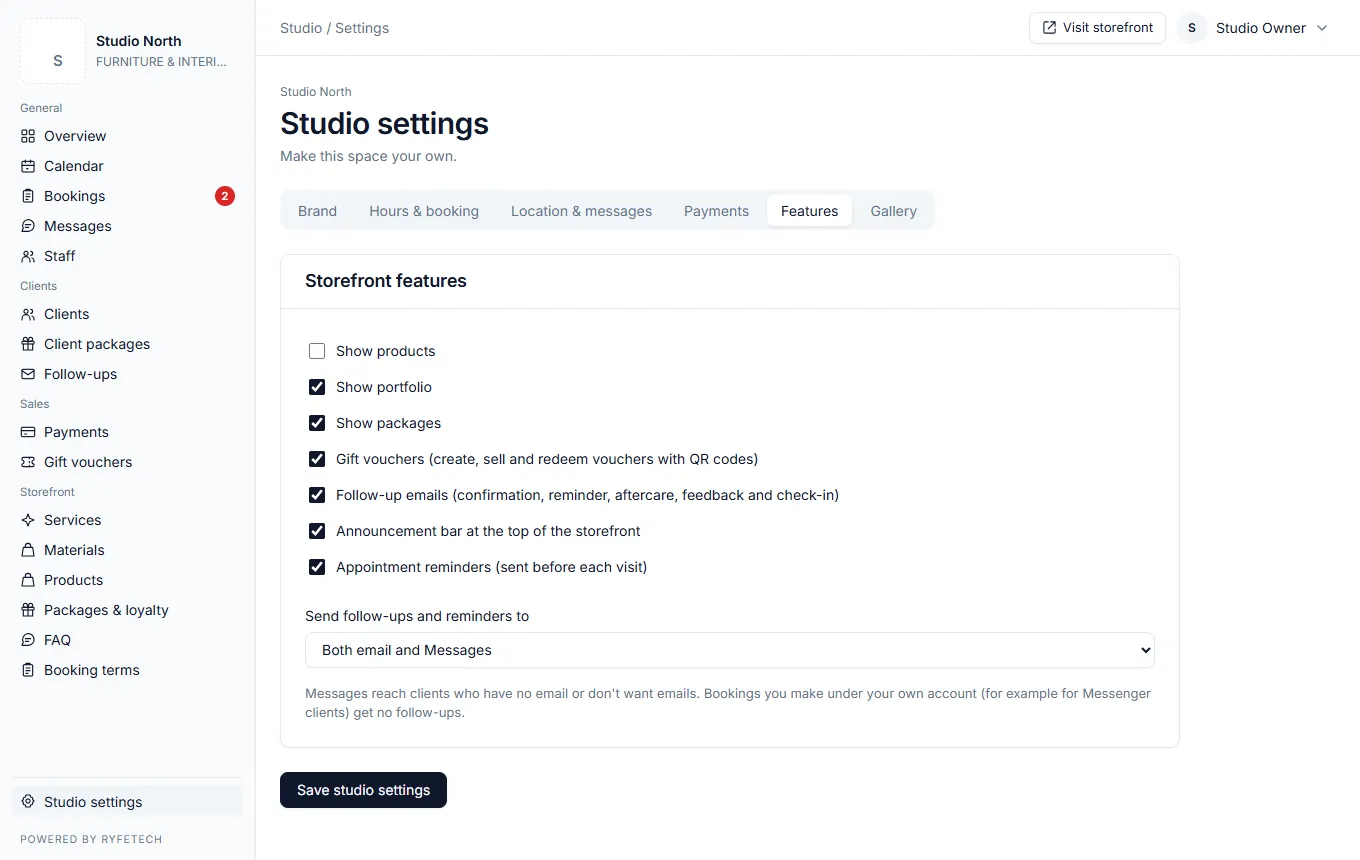
In Studio settings, Features tab, tick "Follow-up emails" and save. Follow-ups only go to appointments from that moment on, never to older ones. "Follow-ups" appears in the sidebar under Clients.
Tap to enlarge -
2
Write your messages
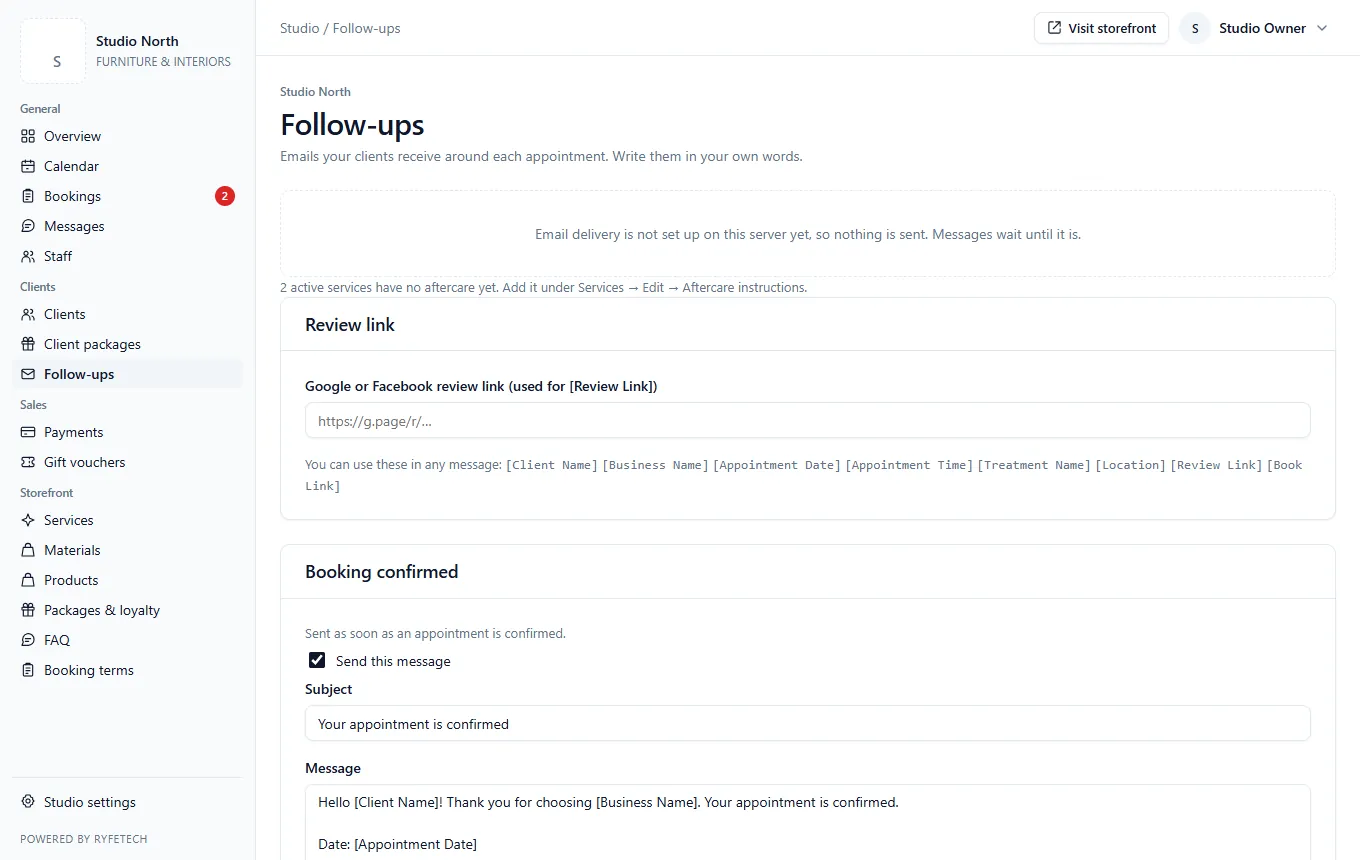
Each message has an on/off switch, a subject and the text. Use the fill-ins like [Client Name], [Treatment Name], [Appointment Date], [Location] and [Review Link]; open Preview to see how it reads. Add your Google or Facebook review link at the top.
Tap to enlarge -
3
Up to three reminders
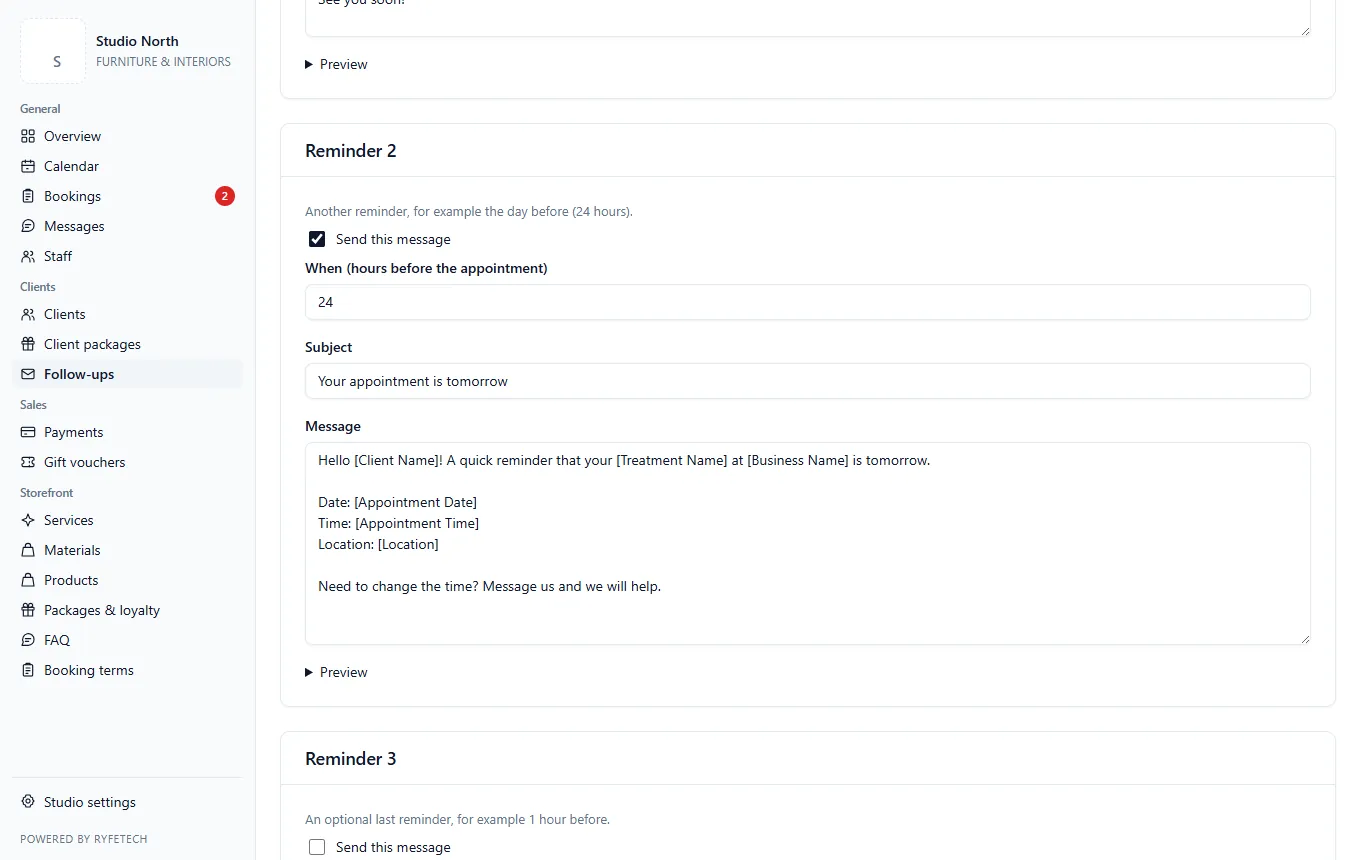
Reminder 1, 2 and 3 each have their own "hours before", for example 24, 3 and 1. A booking made at short notice only gets the reminder that still fits, never several at once. While you use your own reminders, the standard ones step aside.
Tap to enlarge -
4
Aftercare after the visit
When a visit ends, the client gets your aftercare message followed by the aftercare written on that service, then the feedback request. Write aftercare per service under Services, Edit (see "Services: short descriptions and aftercare").
-
5
Email, Messages or both
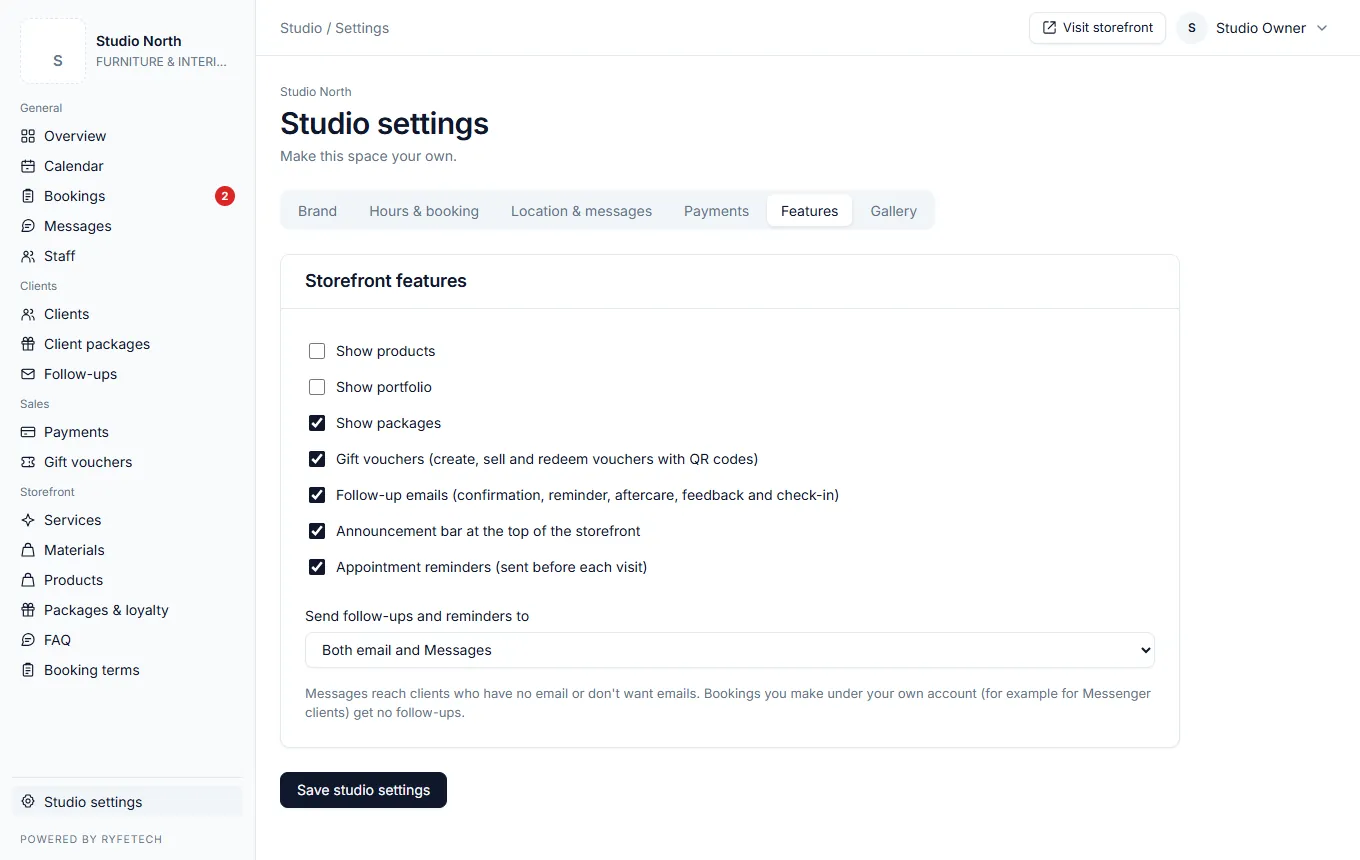
In Studio settings, Features tab, choose where follow-ups and reminders go: Email, Messages, or both. Messages land in the client's Messages on your storefront and in your app, with a phone notification, so clients who have no email or don't want emails still get them. They are sent from your account, and the client can reply in the same chat.
Tap to enlarge 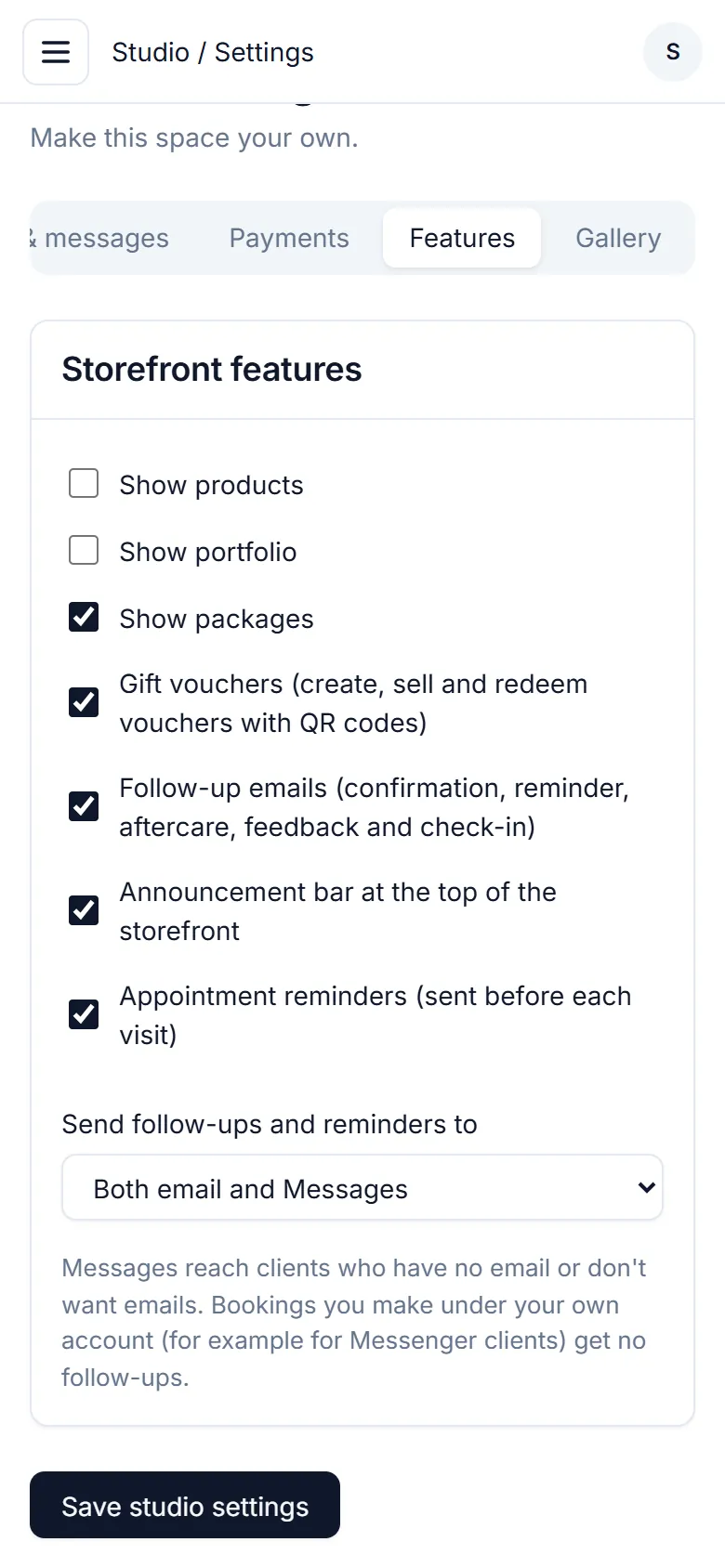
Tap to enlarge -
6
Turn reminders off
Untick "Appointment reminders" in the Features tab and save to stop every reminder before a visit. The confirmation, aftercare and check-in still go out. To stop just one reminder, switch it off on the Follow-ups page instead.
Tap to enlarge Tap to enlarge -
7
Who gets them
Emails come from your business name, and replies go to you. Bookings marked as test never get them. Bookings you make under your own owner or staff account (for example for a client who booked on Messenger) get none either, since they would only reach you; confirm those with the client yourself.