
Order, feature and hide your services, packages and products
Choose the order clients see, star the items for your front page, and show or hide any item with one switch.
-
1
Open your list
In the sidebar under Storefront, open Services, Products or Packages & loyalty. The list is in the same order clients see on your storefront. Use "Find" to look up an item by name or category.

Tap to enlarge -
2
Set the order
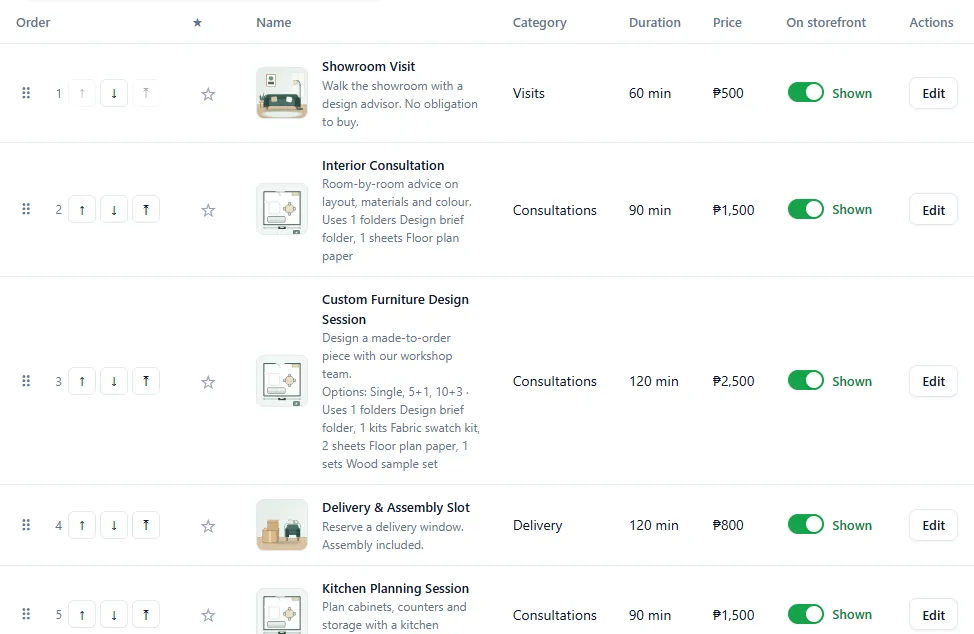
Drag a row by its handle (⠿) to a new place, or use the arrows: ↑ moves it up one, ↓ down one, and ⤒ to the very top. The new order is saved at once; there is nothing else to press. For example, put Interior Consultation right after Showroom Visit. New items you add go to the end of the list.
Tap to enlarge -
3
Feature an item on your front page
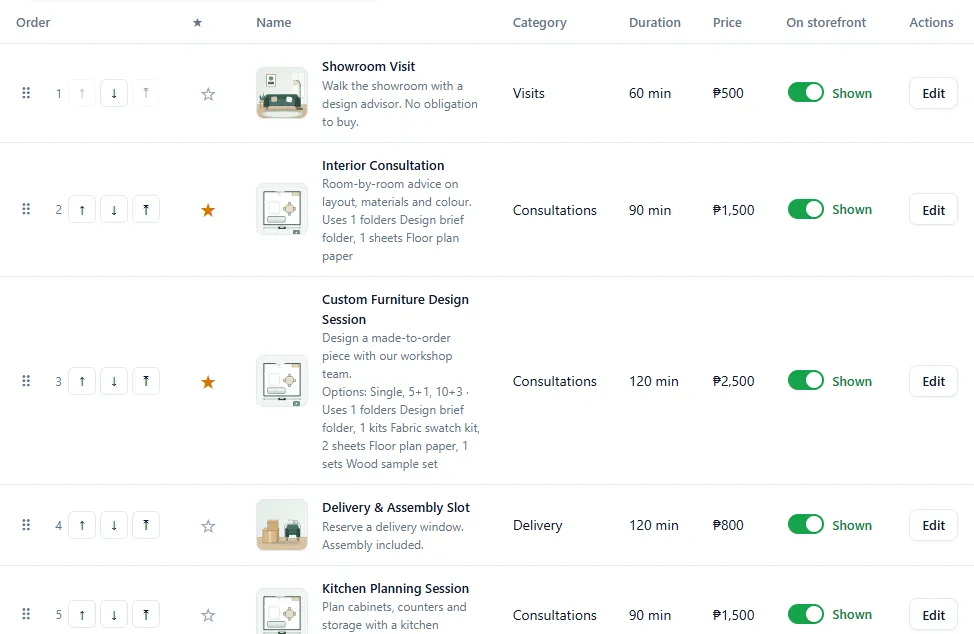
Click the star (☆) beside an item. It turns gold (★) and the item appears on your storefront's front page, in the same order as your list. Click the gold star again to take it off. Starred services replace the first three services the front page shows; starred packages and products get their own "Featured" sections. You can also tick "Featured on the storefront front page" when you edit an item.
Tap to enlarge -
4
Show or hide an item
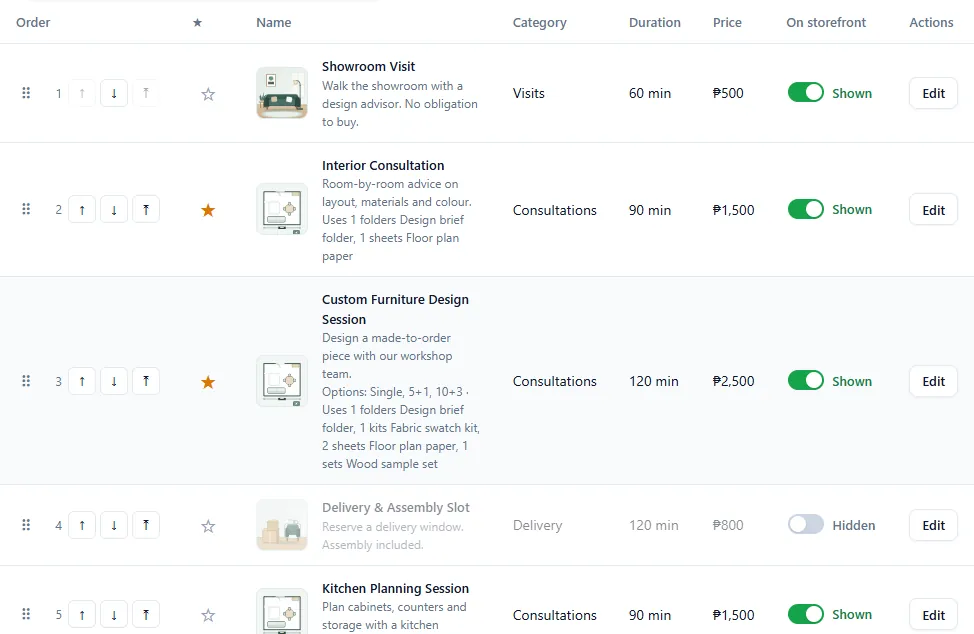
The switch under "On storefront" shows or hides an item in one click. Green "Shown" means clients see it; grey "Hidden" means they don't, and the row is greyed out. A hidden item keeps its details, photo, place in the order and past bookings, so you can show it again any time, for example for a seasonal treatment.
Tap to enlarge -
5
What clients see on the front page
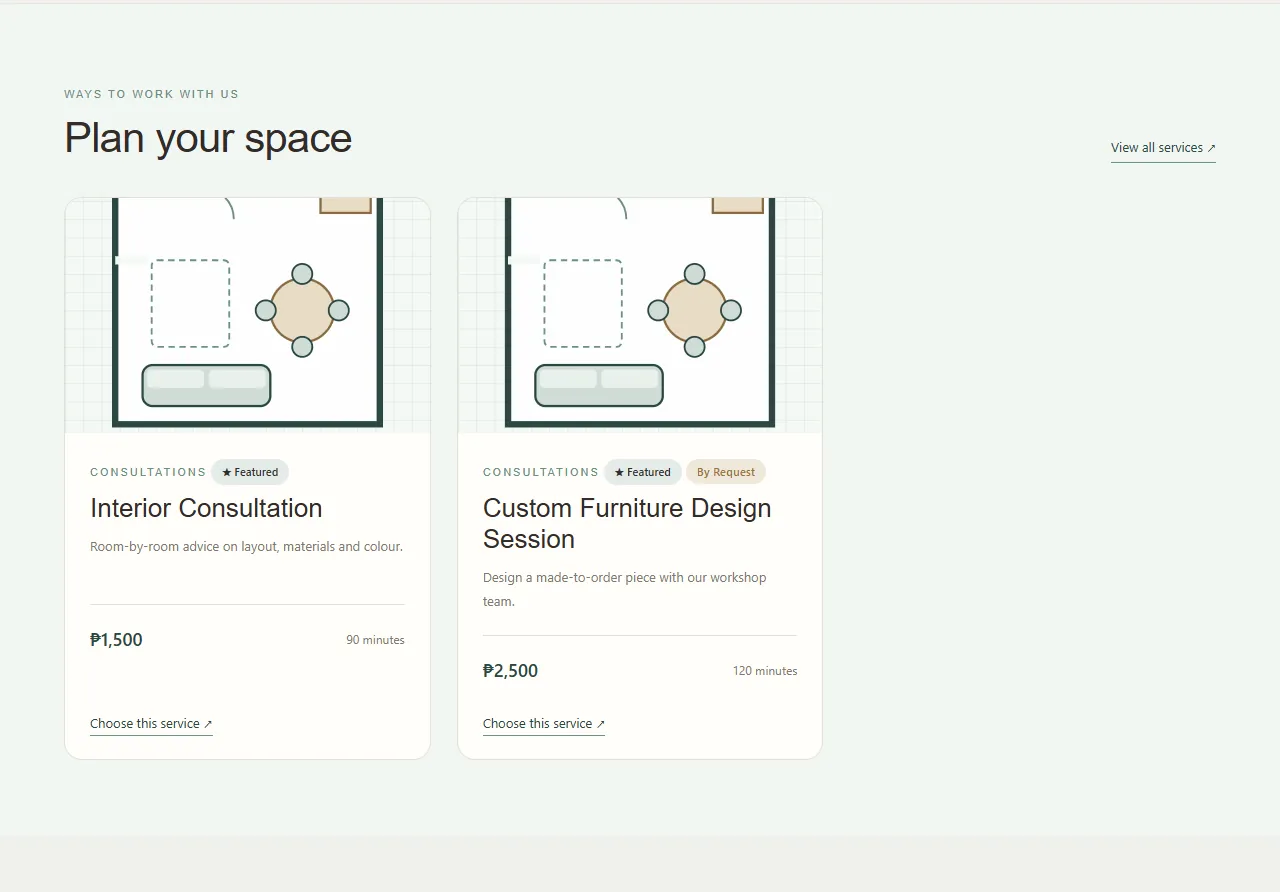
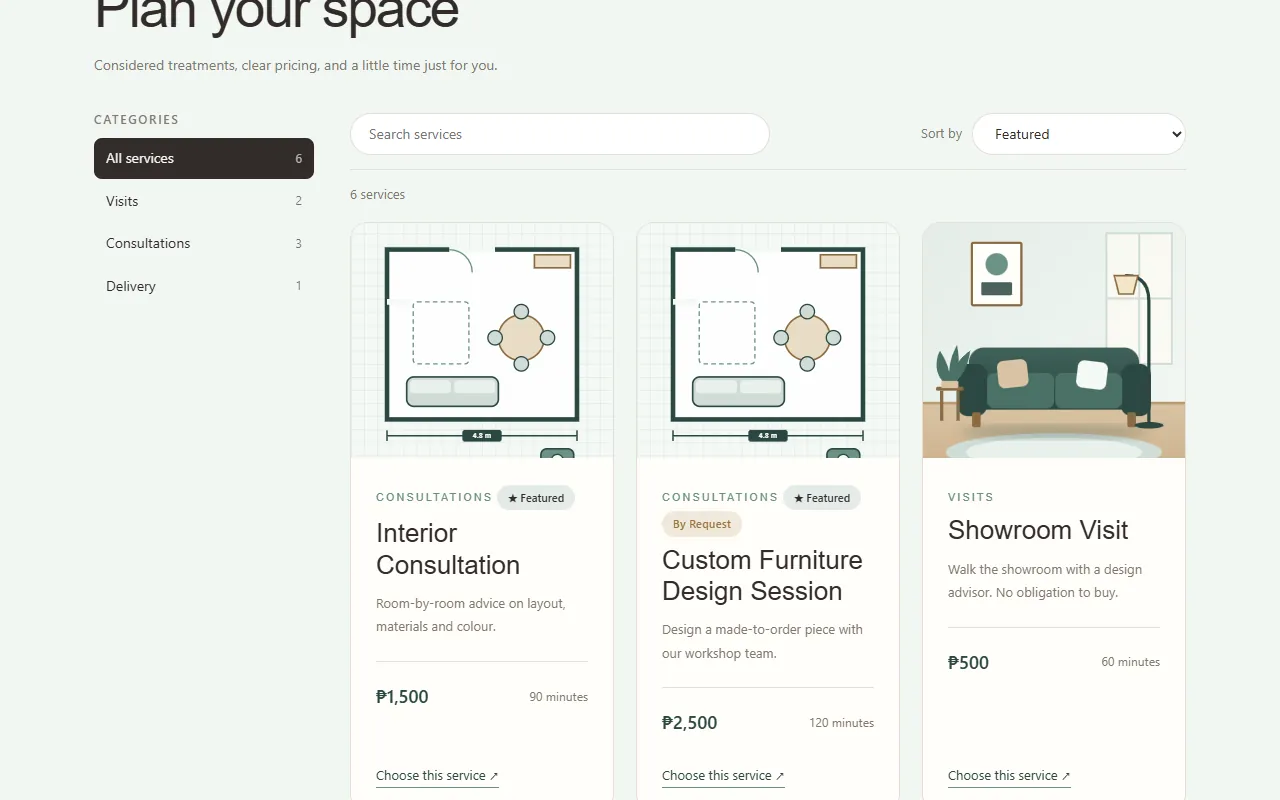
Your starred items lead the front page, each with a small "★ Featured" label. Without any stars, the front page shows the first three services in your order.
Tap to enlarge -
6
What clients see on the menu pages
The Services, Packages and Products pages work like a store: your categories with how many items each has, a search box, and "Sort by" (Featured, price low to high or high to low, name, and duration or visits). "Featured" keeps your order with starred items first. On phones the categories become a row of buttons above the list.
Tap to enlarge