
Packages as options on a service (5+1, 10+3)
Show your packages on the service itself, so clients pick Single, 5+1 or 10+3 and the price changes with their choice.
-
1
Link a package to its service
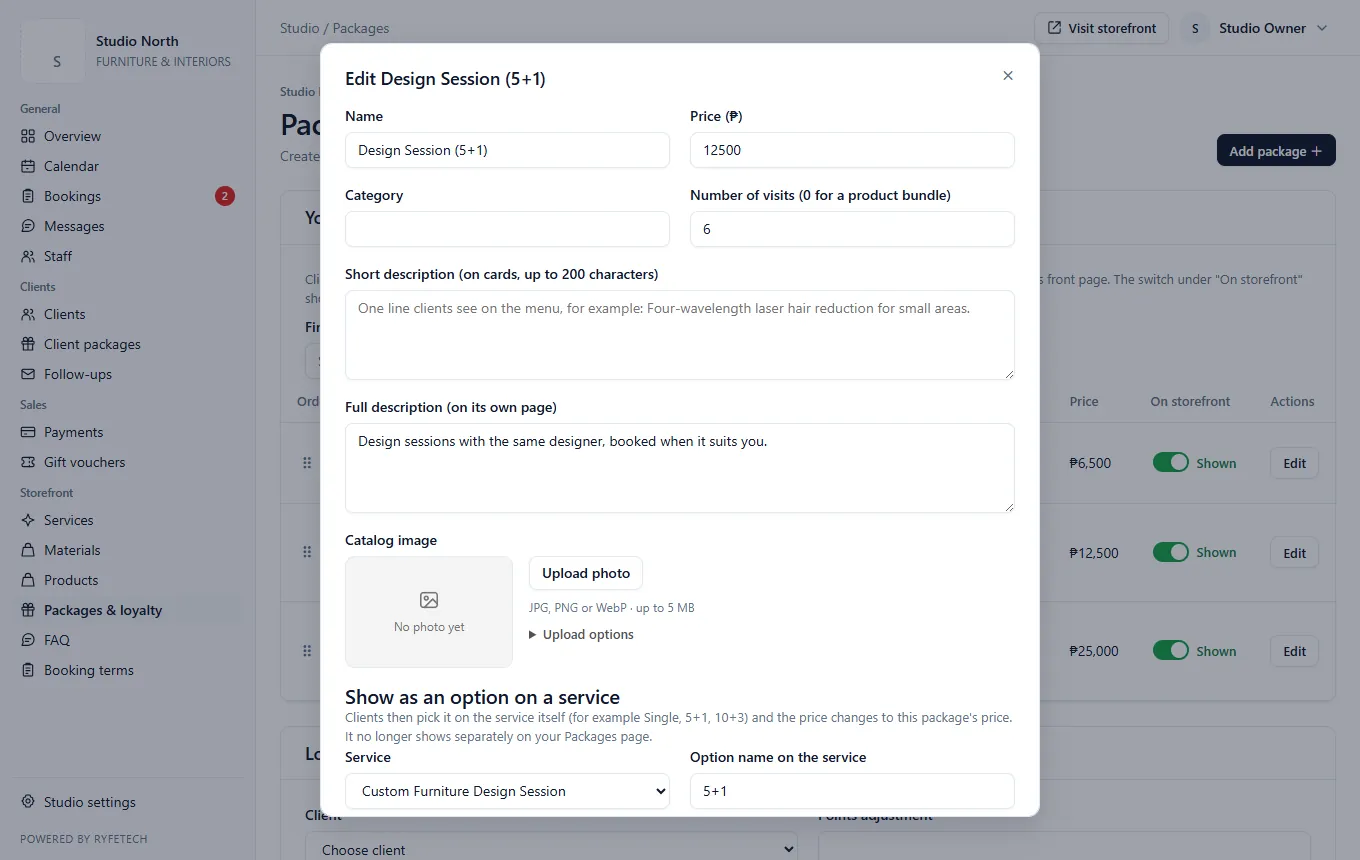
Open Packages & loyalty, choose Edit on a package and scroll to "Show as an option on a service". Pick the service and give the option a short name, for example 5+1. Save. The package keeps its own price and number of visits.
Tap to enlarge 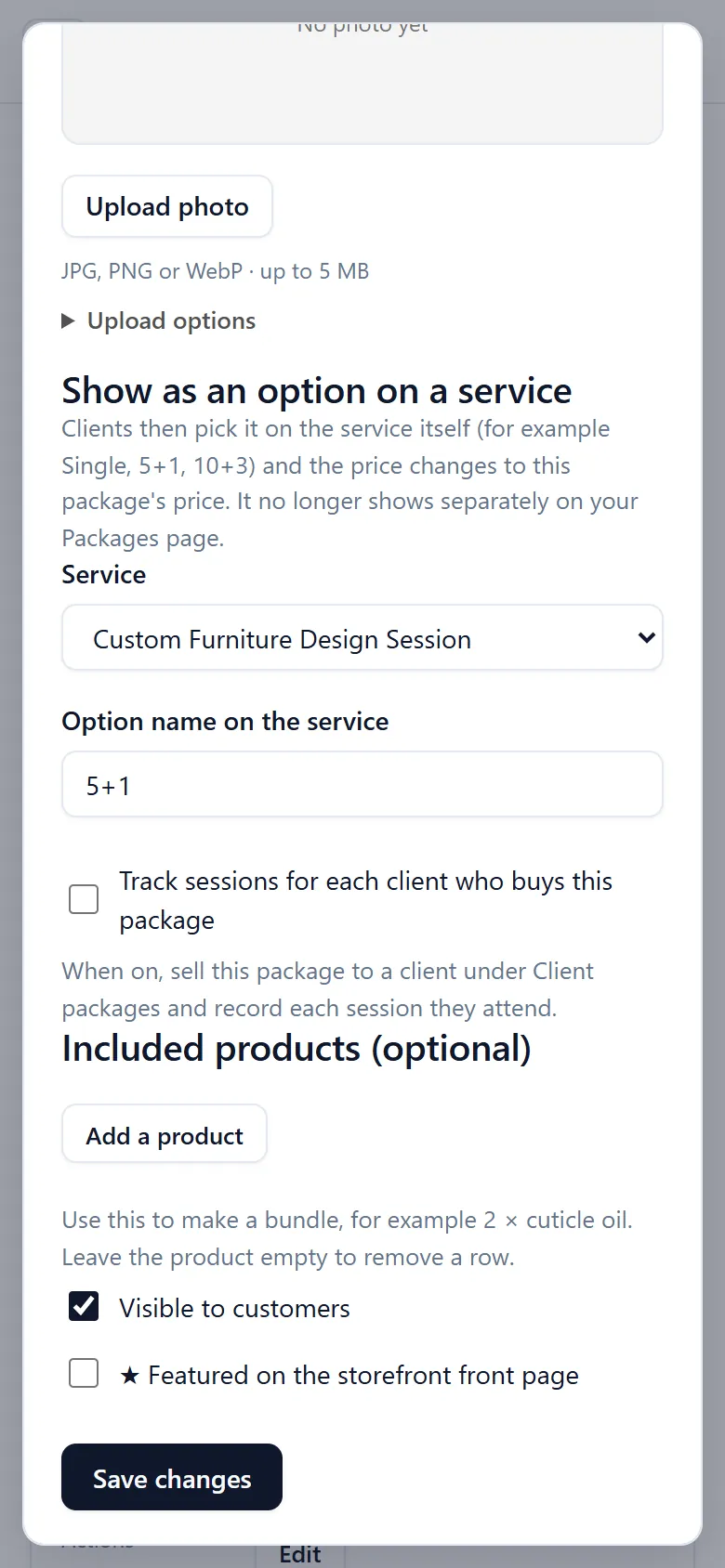
Tap to enlarge -
2
Your packages list
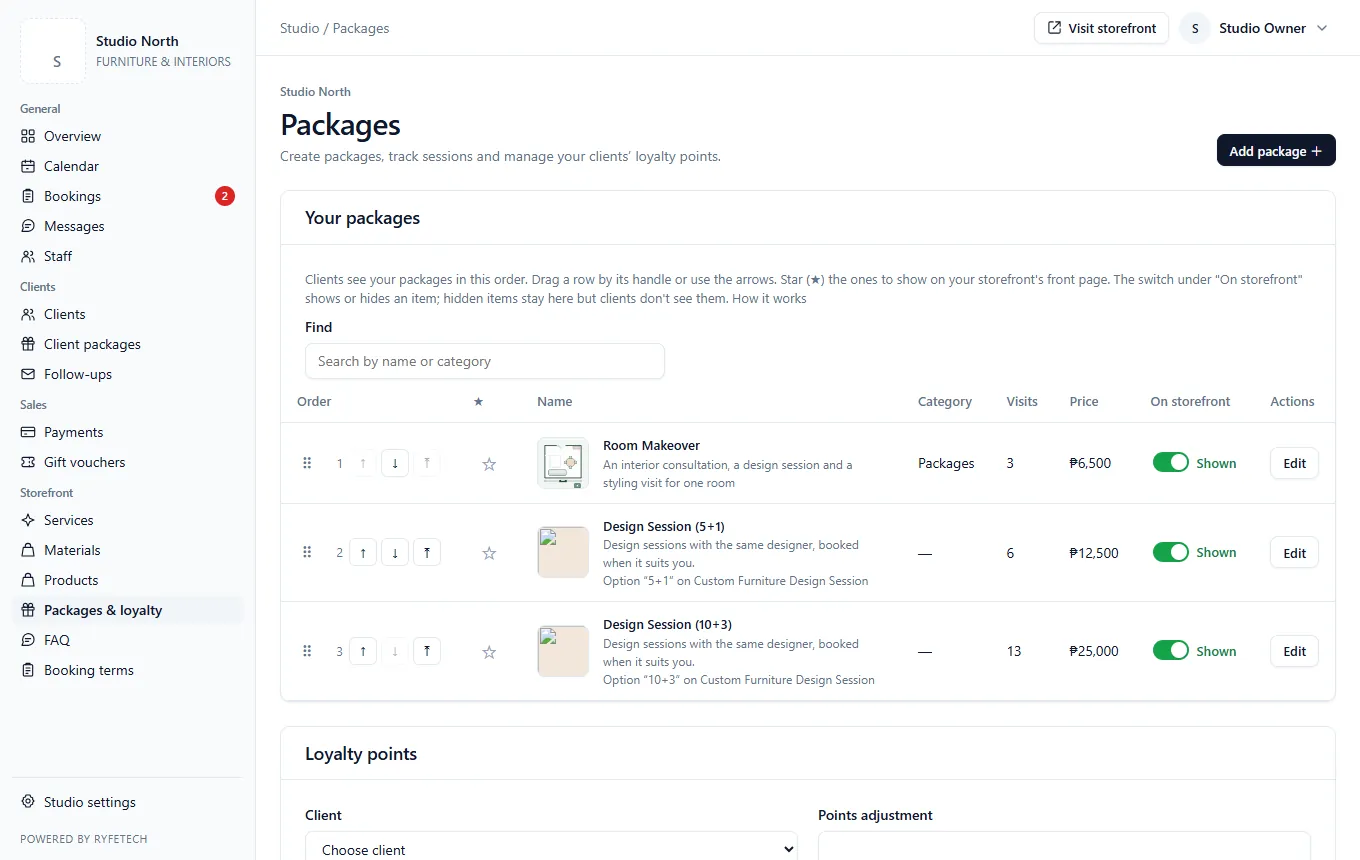
Linked packages say which service they are an option on. They no longer show separately on your storefront's Packages page; packages you don't link stay there as before.
Tap to enlarge -
3
What clients see on the service
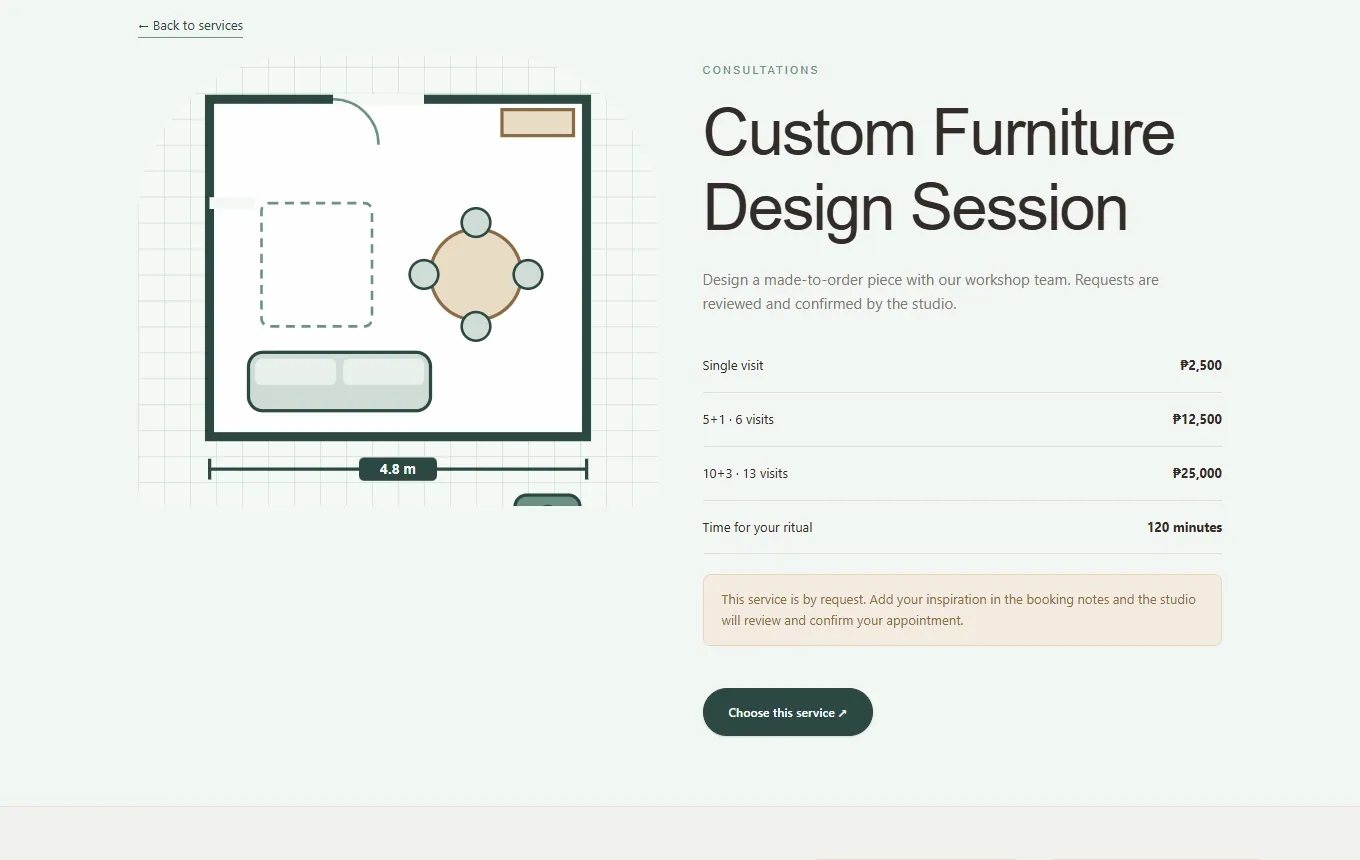
The service page lists the single visit and each option with its price.
Tap to enlarge 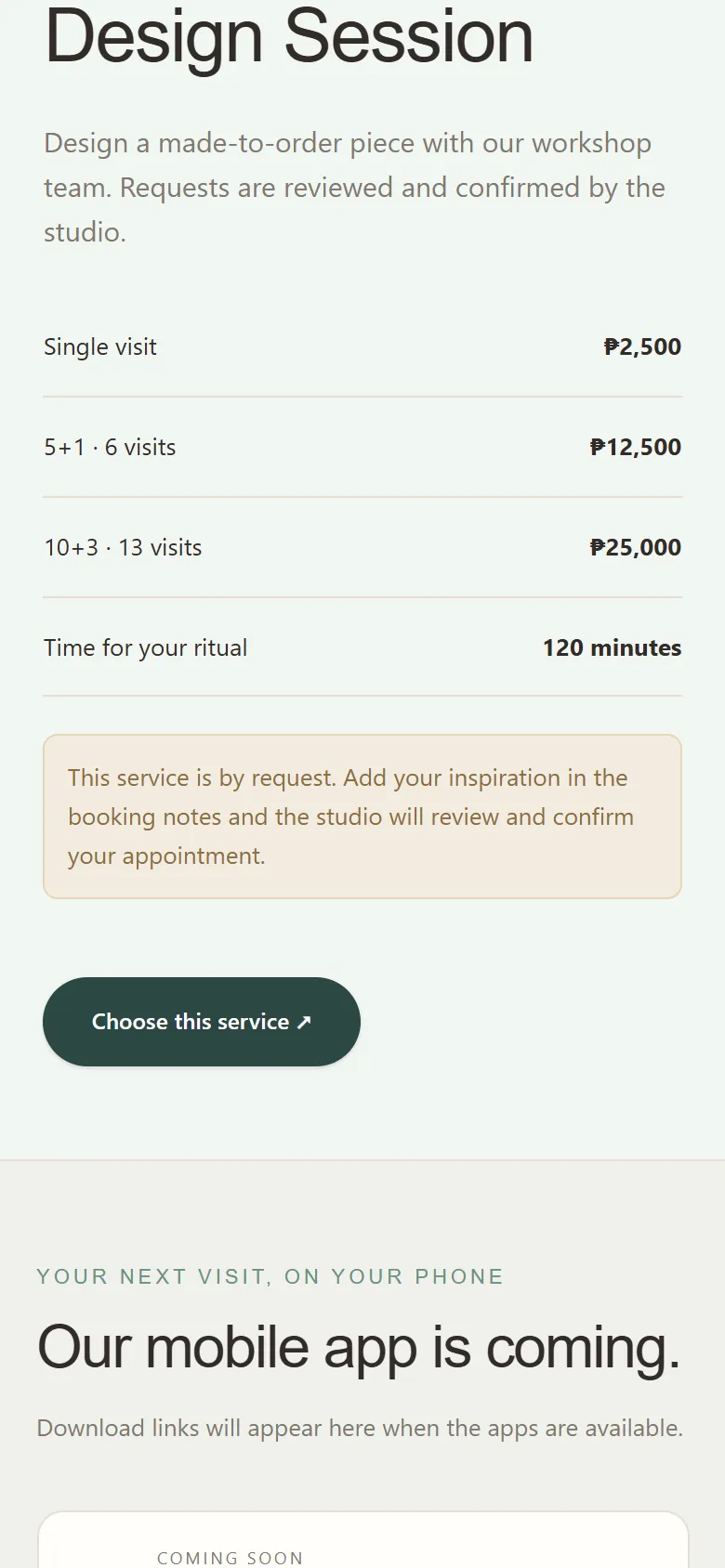
Tap to enlarge -
4
Booking with an option
When booking, the client picks Single visit or an option, and the summary and total change to match. The booking shows the option in your Bookings list (for example "· 5+1" after the price).

Tap to enlarge 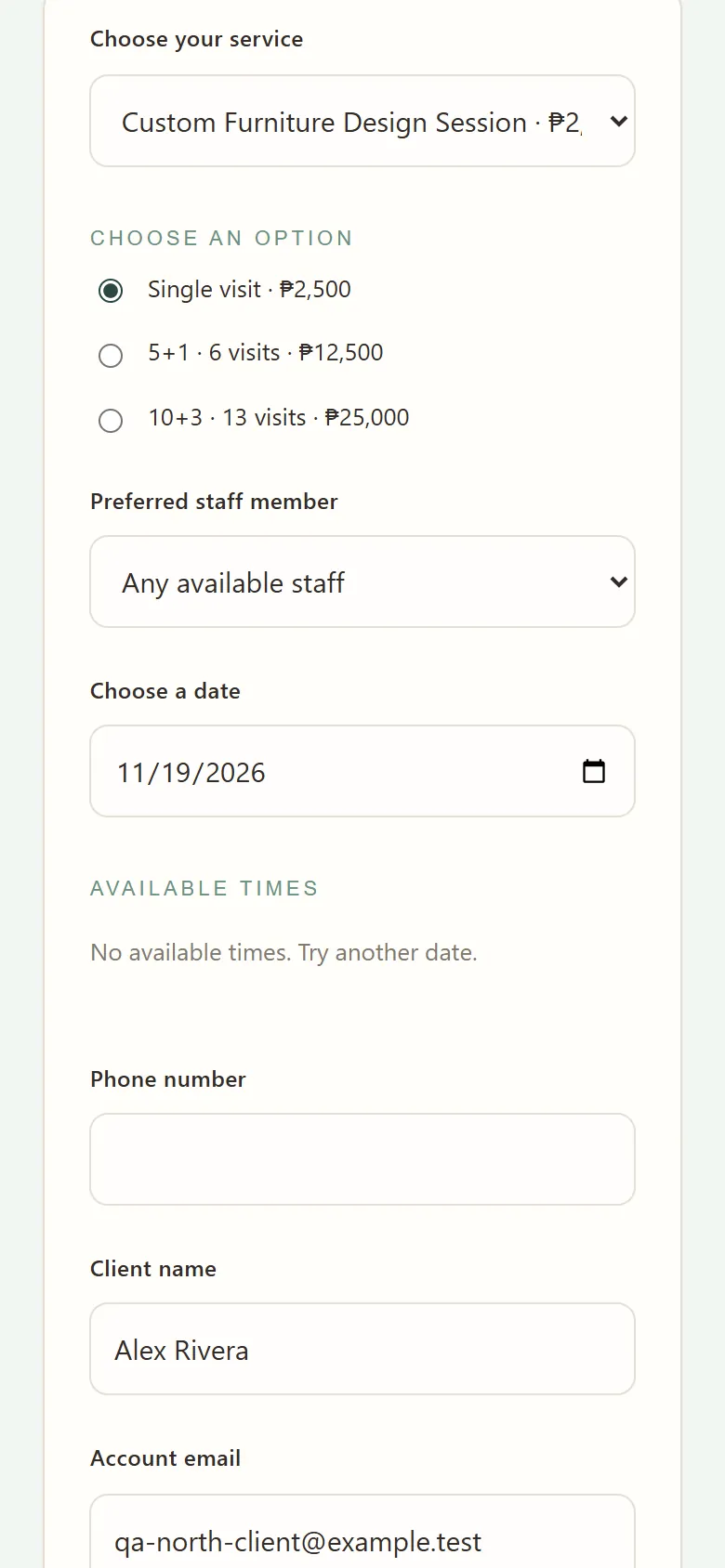
Tap to enlarge