
Materials and stock
List the materials your treatments use. Each time a booking is completed, what that service uses comes off your stock.
-
1
Add your materials
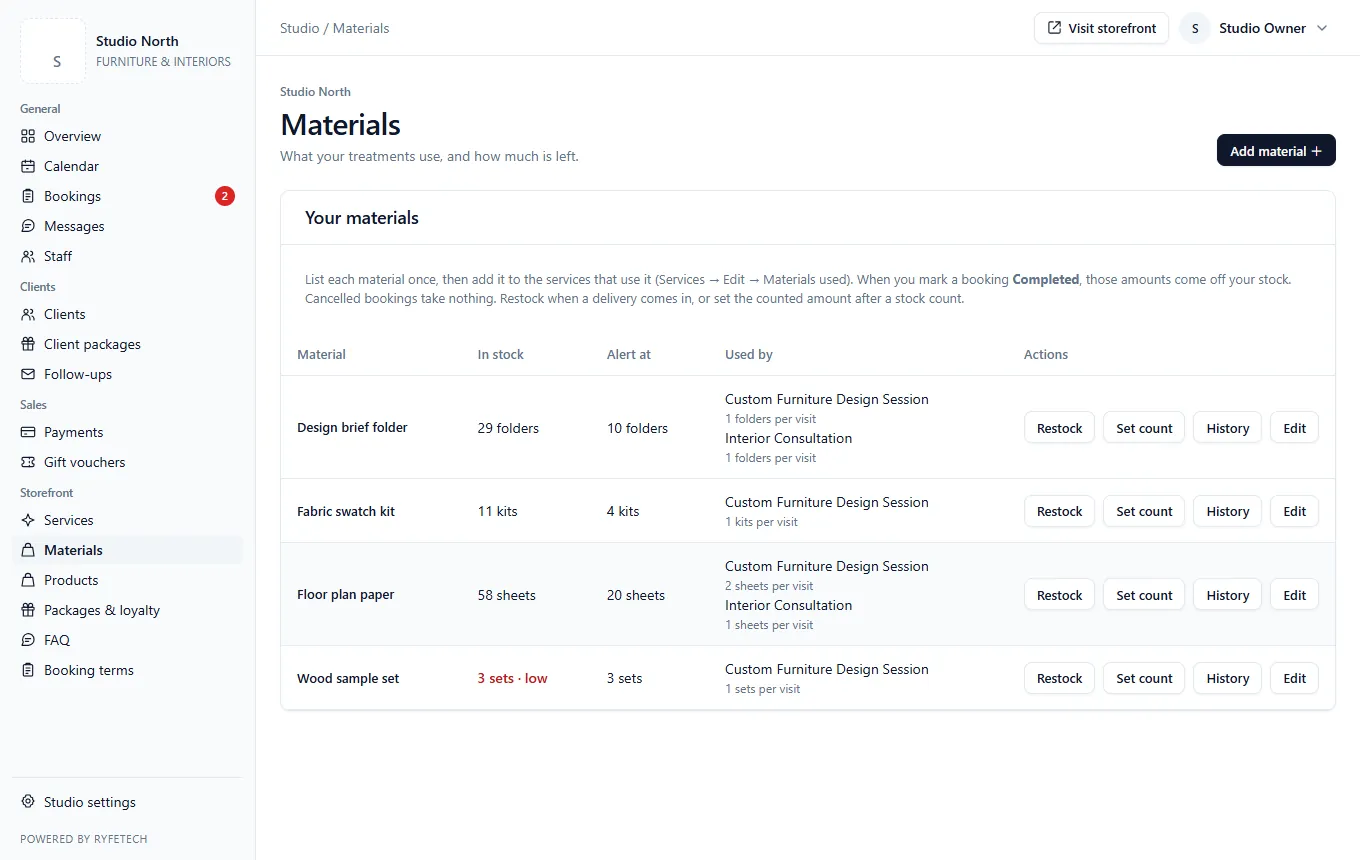
Open Materials (under Storefront in the menu) and choose "Add material". Give it a name, a unit such as ml, g or pcs, how much you have now, and the amount at which you want a warning. Low materials show in red.
Tap to enlarge 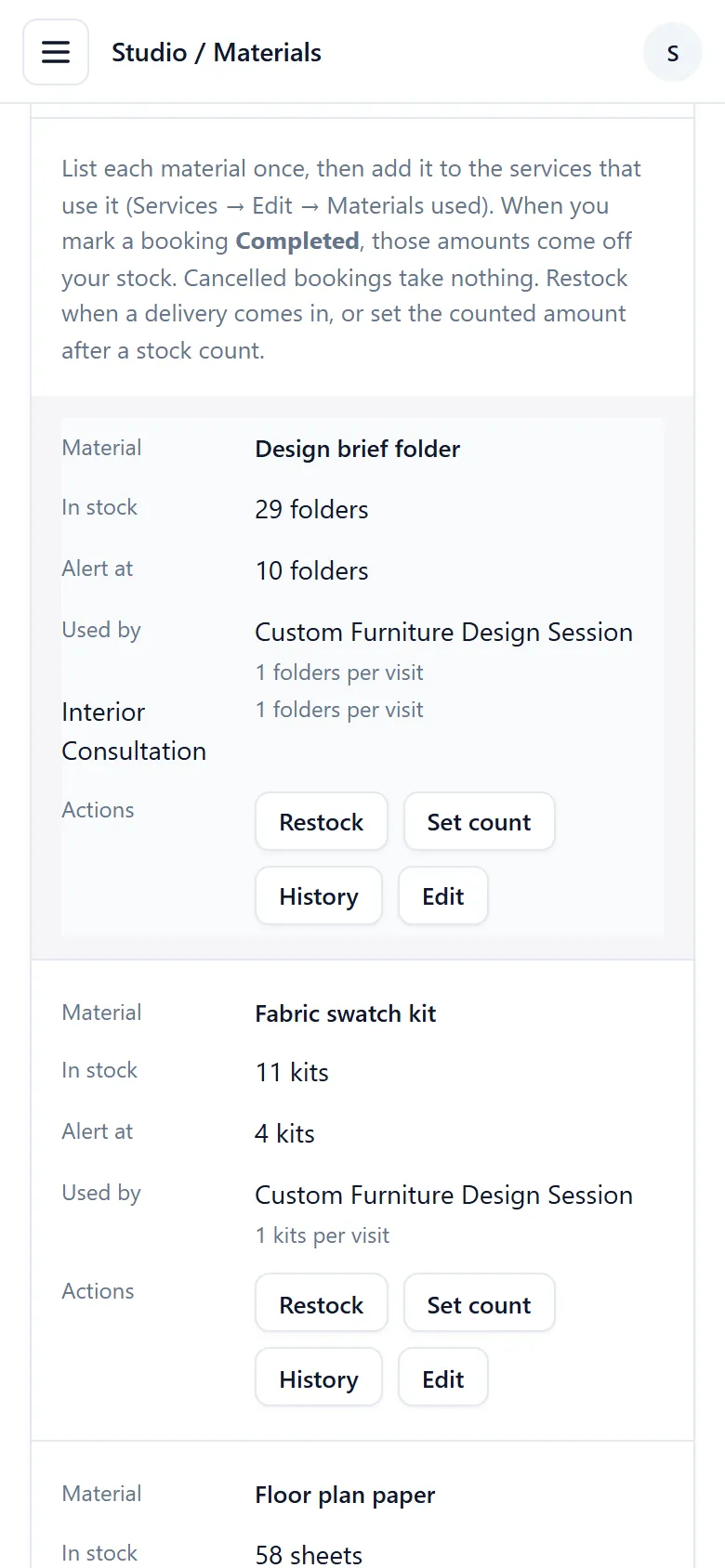
Tap to enlarge -
2
List what each service uses
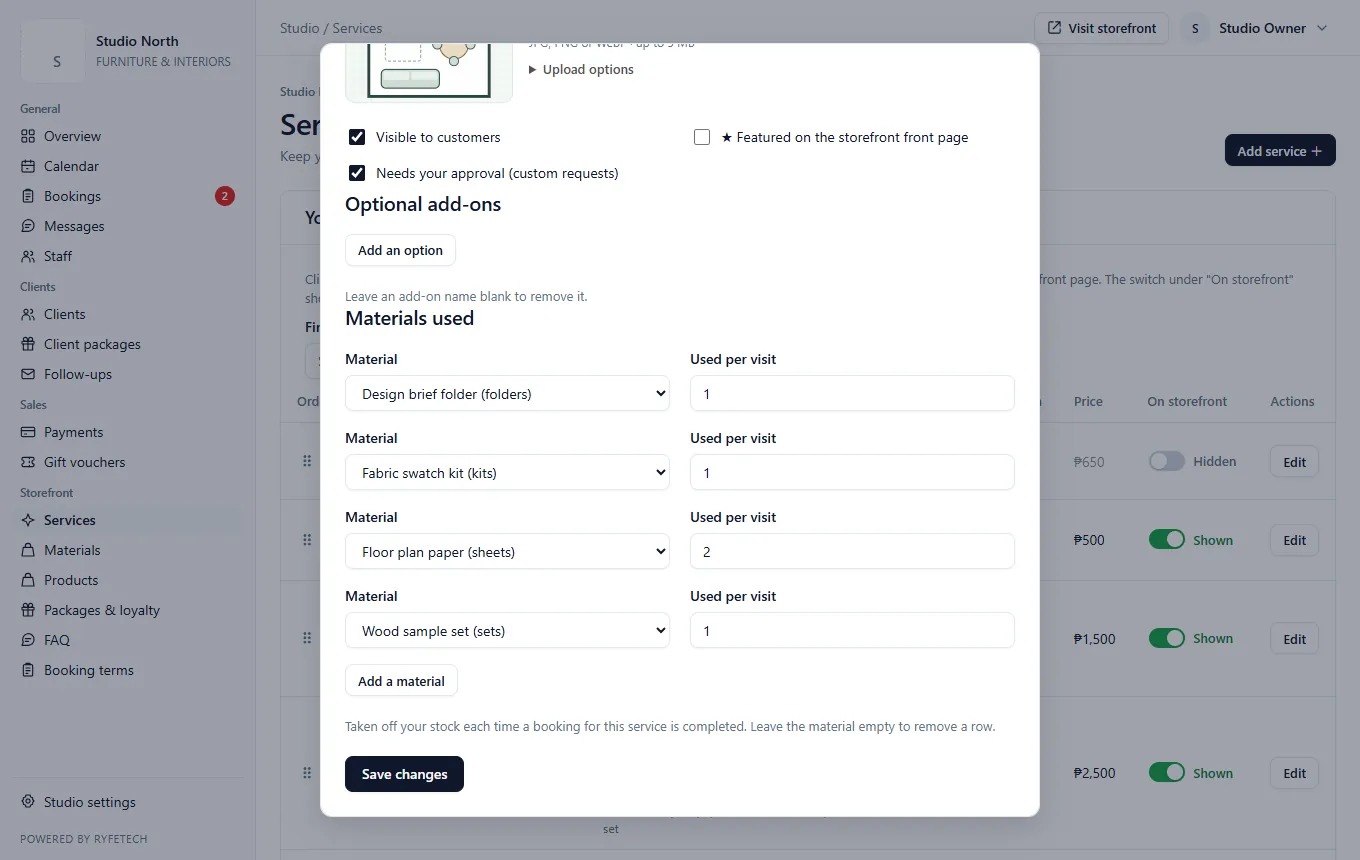
Go to Services, choose Edit on a service and scroll to "Materials used". Add each material and how much one visit uses (decimals are fine, for example 2.5 ml). Save.
Tap to enlarge 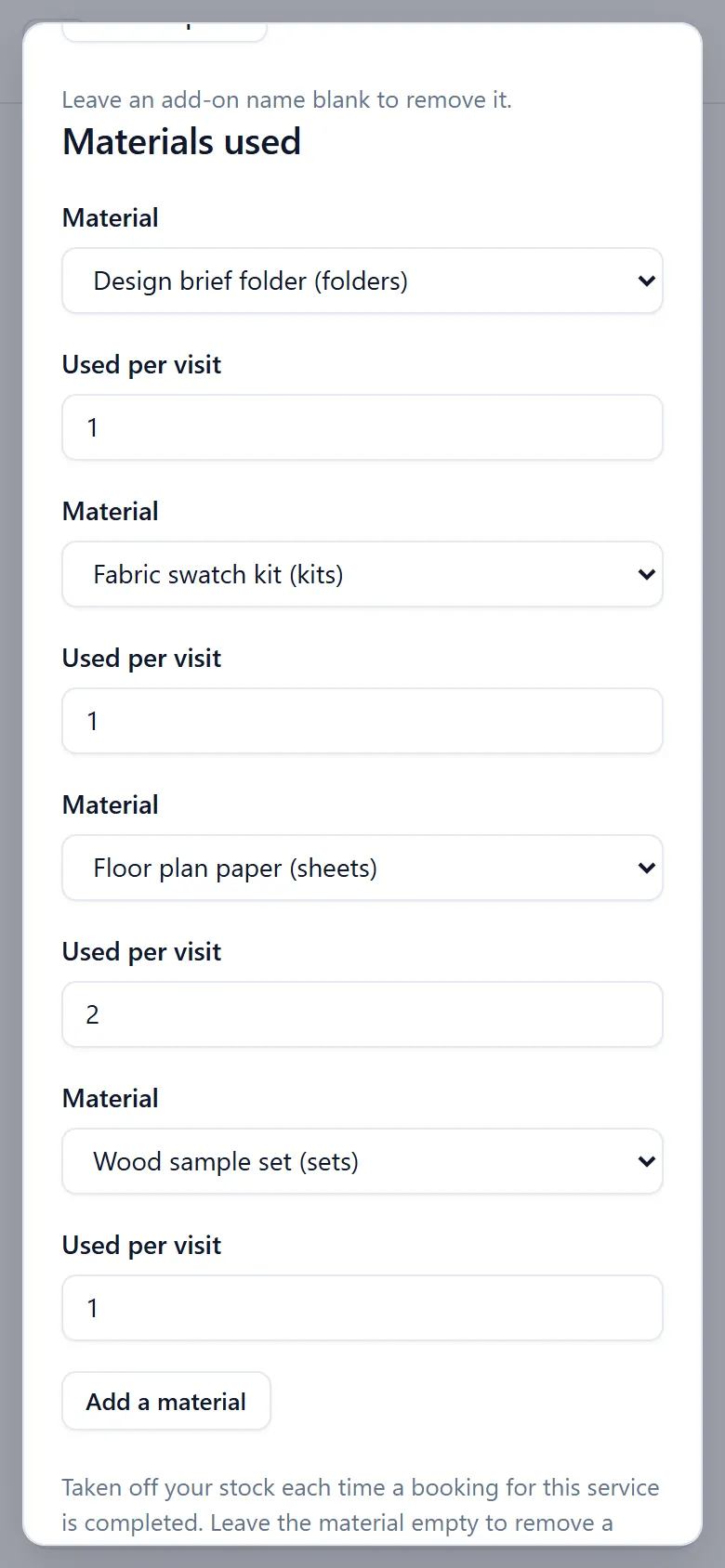
Tap to enlarge -
3
Stock goes down when you complete a booking
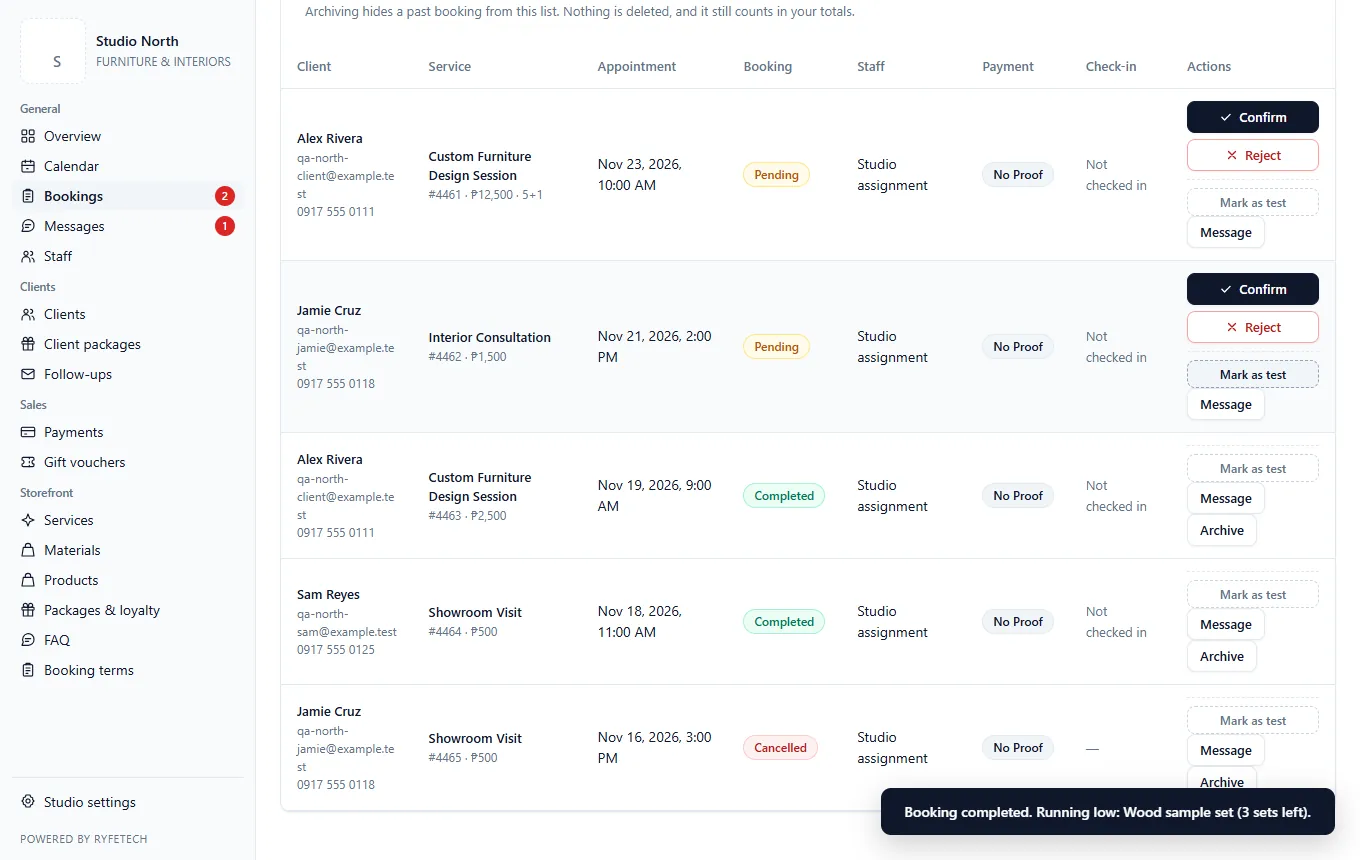
When you mark a booking Completed, the materials for that service come off your stock, once. If something is running low, a message tells you right away. Pending, cancelled and rejected bookings take nothing.
Tap to enlarge 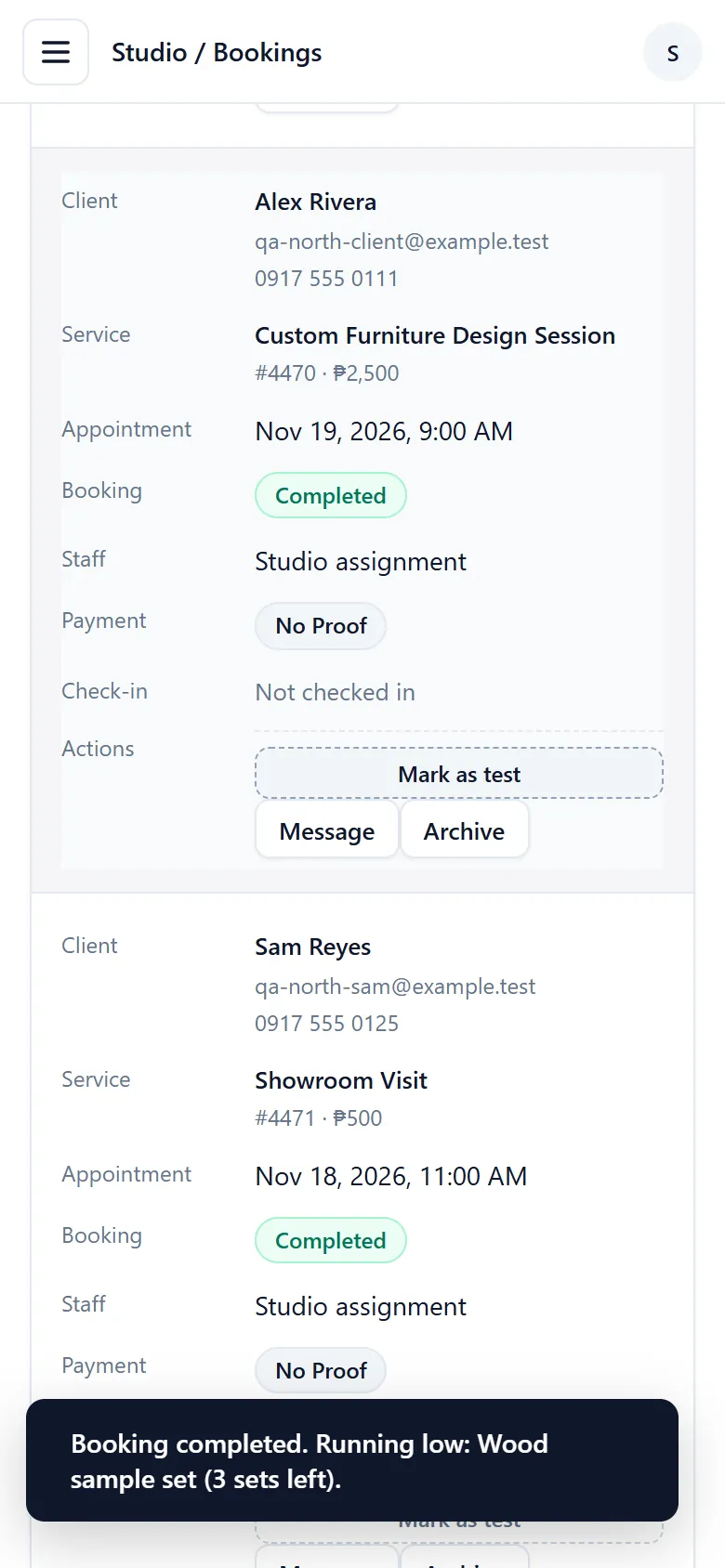
Tap to enlarge -
4
Restock, count and history
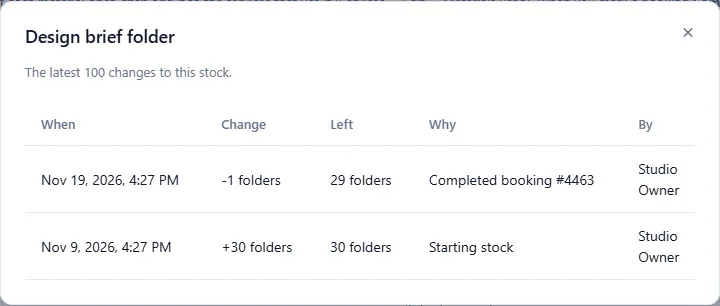
"Restock" adds a delivery. "Set count" replaces the number after a stock count. "History" lists every change: completed bookings, restocks and counts, with who made them.
Tap to enlarge Tap to enlarge